How to password protect a PDF before you share it
Sending a PDF email attachment has become a second-nature standard—but have you ever stopped to consider if a PDF file is really secure? Here's how to send a PDF that is secure and password-protected:
Updated February 25, 2026
Originally published January 25, 2021
Since the introduction of PDFs over three decades ago, sharing PDF documents has become ubiquitous in both personal and professional settings. But in today's landscape of sophisticated cyber threats and remote collaboration, have you ever stopped to consider if a simple PDF file is truly secure?
Here's how to password protect a PDF and track it in 2026.
Why PDF Security Matters More Than Ever
The PDF format has evolved significantly since its creation, becoming the de facto standard for sharing everything from pitch decks and financial statements to contracts and confidential reports. In our increasingly distributed work environment—where teams collaborate across time zones and sensitive documents travel through multiple channels—the question isn't whether to secure your PDFs, but how to do it effectively.
Traditional methods like password protection offer a baseline level of security, but they fall short in today's environment where document tracking, access control, and audit trails are essential for compliance and business intelligence.
In this guide, I'll review how to password protect a PDF and, more importantly, how to track and control it once you've shared it—giving you real visibility into who's viewing your documents and how they're engaging with them.
Option 1: Password protecting PDF files
Most professionals who send sensitive documents—from CEOs and CFOs to legal teams and consultants—still rely on password protection as their primary security measure. While password protection does provide a basic layer of security, it comes with significant limitations in today's collaborative environment.
How to add password protection using Adobe Acrobat
Open the PDF in Adobe Acrobat.
Go to File, then click "Protect Using Password."
Choose whether to require a password for opening the document or for editing it.
Enter your password, then re-enter to confirm.
Click "Apply."
How to add a password using Preview on a Mac
Open the PDF in Preview.
Go to File, then click "Export as PDF."
Select "Encrypt" and check the box.
Enter your password, re-enter to confirm, then click "Save."
The Password Protection Paradox
What password protection accomplishes: It limits initial access to those who know the password.
What password protection doesn't accomplish:
No viewer tracking: You have zero visibility into who's opening, reading, or downloading your PDF
No forwarding control: Anyone with the password can share both the file and password with unlimited recipients
No access revocation: Once shared, you can't disable access or update permissions
No engagement analytics: You can't see which sections readers focus on or how long they spend with your document
No audit trail: There's no record of who accessed the document, when, or from where
In essence, the moment you email a password-protected PDF, you've lost control of it. The document and password can be forwarded indefinitely, shared in Slack channels, posted to unsecured cloud storage, or even leaked publicly—and you'll never know.
For organizations dealing with investor materials, M&A documents, client proposals, or any high-stakes content, this vulnerability isn't just a minor inconvenience—it's a serious business risk.
Option 2: Share PDF documents through DocSend
DocSend (part of Dropbox) enables business leaders to share documents securely while maintaining complete control and tracking detailed viewer engagement. Instead of sending password-protected PDFs via Gmail or Outlook, you can share truly secure PDFs through DocSend's modern sharing platform—complete with integrations for Gmail, Outlook, Slack, and other tools you already use.
If you'd like to follow along, you can get started with DocSend for free.
Step 1: Upload your PDF files to DocSend
DocSend integrates seamlessly with Google Drive, Dropbox, Box, Microsoft OneDrive, and other cloud storage platforms, allowing you to import files from wherever they live. You can also upload directly from your computer or via the browser extension.
Navigate to your Content tab in DocSend.
Click 'Add Content' in the top right.
Select your file from any integrated cloud service or upload from your device.
Your document will upload and process. You can rename it and add it to folders for organization.
Step 2: Create a secure, trackable link to share your PDF
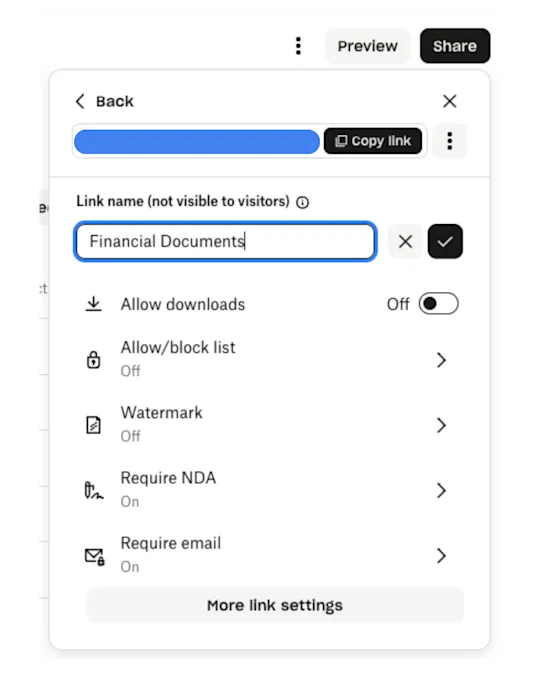
When you create a sharing link for your uploaded PDF, you have granular control over security and access:
Core Security Options:
Email verification: Require viewers to enter their email before accessing
Passcode protection: Add an additional layer of security with a passcode
Link expiration: Set automatic expiration dates for time-sensitive materials
Download controls: Allow or prevent downloading
Viewer verification: For advanced security, require verified email confirmation (viewers must click a link sent to their email to access the document)
Dynamic watermarking: Apply custom watermarks with viewer information to deter unauthorized sharing
NDA acceptance: Require viewers to accept an NDA before accessing sensitive documents
Pro Tip: For tracking purposes, create individual links for each recipient or group. This allows you to see exactly who's engaging with your content and how.
You can also upload and attach your PDF to an email with DocSend’s Gmail and Outlook plugins
If you'd rather upload and share your PDF as an email attachment without leaving Gmail or Outlook, you can do so using DocSend plugins for Gmail and Outlook. Here's the link to attaching an uploaded PDF using the Gmail plugin, and here's the link to attaching an uploaded PDF using the Outlook plugin.
Step 3: Disable and re-enable link-based access as needed
DocSend gives you dynamic control over your shared documents:
Disable access instantly: Revoke access to specific links immediately if needed
Update permissions: Change who can view or download at any time
Extend or shorten expiration: Modify time-based access controls on the fly
View access logs: See detailed records of every view attempt
This real-time control is crucial for scenarios like:
Removing access after a deal closes
Revoking permissions for departed team members
Limiting exposure during active negotiations
Responding to security incidents
For a detailed walk-through of this process, check out our help center article on updating link settings.
How to edit and sign a PDF in Gmail? Easy, add an eSignature with DocSend
Once you have uploaded your PDF word document, file from Google Docs, Dropbox, the PDF documents you saved in Acrobat, or another workflow integrations in DocSend, you can add on eSignature right in DocSend before sending it out to streamline your process.
DocSend's eSignature functionality, allows you to:
Upload your PDF or document
Add signature fields
Send for signing with full tracking
Receive legally binding signatures
Maintain complete audit trails
Within DocSend, you can sign PDF documents, or add electronic signatures, to individual files (not Excel or URL uploaded files), and files in a DocSend Space workspace. With Signable documents, users can convert and share documents securely from DocSend, giving users the ability to track visits and gather signatures on most devices.
The eSignature feature allows one party to sign and is legally binding for both parties. After sending your signature requests, recipients can add their digital signature by clicking a link in their Gmail account, email signature, G Suite, a popup, sidebar, or other places you might share your document link. Signers can add their digital signature directly in the signature field you add to the PDF documents sent as a DocSend link. These PDF signed documents are tracked in your DocSend account with history and audit trails, so you can keep them secure and controlled. This also works in the DocSend mobile web version of Chrome and Safari in iOS and Android. This help center article will detail how easy it is to create and share signable PDF documents using the eSignature feature.
This streamlines workflows for:
NDAs and confidentiality agreements
Service contracts and SOWs
Partnership agreements
Employment documents
Freelancer contracts
Recipients can sign directly in their browser—no additional software required. Every signature is tracked with timestamps, IP addresses, and full audit trails for compliance.
Comprehensive Document Analytics
The real power of DocSend lies in its analytics capabilities. When you share documents through individual links, you unlock detailed insights:
Instant Notifications
Receive real-time alerts when your document is:
First opened
Viewed by new recipients
Forwarded to others (when tracking is enabled)
Downloaded
Page-by-Page Engagement
See exactly where viewers spend their time:
Time spent on each page or slide
Pages that are skipped
Sections that generate the most interest
Drop-off points where readers lose interest
Viewer Analytics
Understand your audience:
Geographic location of viewers
Device and browser information
Access times and frequency
Return visits and engagement patterns
Document Performance Dashboard
Access comprehensive metrics:
Total views and unique viewers
Average time spent
Completion rates
Download activity
Sharing and forwarding patterns
Use Cases for Analytics
For M&A and Due Diligence:
Monitor data room activity
Track which acquirers are most engaged
Ensure compliance with document access
Maintain detailed audit trails
For Fundraising:
Track which investors are spending time with your pitch deck
See which slides generate the most interest
Identify when to follow up based on viewing patterns
Understand engagement across your investor pipeline
For Sales Teams:
Prioritize follow-ups based on engagement
Identify which prospects are most interested
Optimize proposals based on what sections get the most attention
Know exactly when to reach out after sending materials
For Client Services:
Confirm clients have reviewed proposals
See which services generate the most interest
Track engagement with contracts and SOWs
Improve client communication timing
Modern Security for Modern Teams
In 2026's hybrid work environment, where documents move between offices, homes, coffee shops, and international destinations, traditional PDF security simply doesn't cut it. DocSend provides:
Enterprise-grade encryption: Bank-level security for documents in transit and at rest
Compliance ready: SOC 2, GDPR, CCPA, and other regulatory compliance
Single Sign-On (SSO): Integration with enterprise identity providers
Advanced permissions: Role-based access control for team collaboration
Revocable access: Instantly revoke access to shared materials
Zero-knowledge architecture: Your documents remain encrypted and private
Getting Started
Ready to move beyond basic password protection? DocSend offers:
Free 14-day trial: No credit card required
Starter Plan: Essential features for individuals
Standard Plan: Advanced analytics and controls for teams
Advanced Plan: Enterprise features including SSO, advanced verification, and unlimited spaces
Next Steps
Start your free trial at docsend.com/signup
Upload your first PDF and explore the security options
Share a tracked link and watch the analytics in real-time
Review the performance data to understand document engagement
Optimize your approach based on insights
Questions?
Check out the DocSend Help Center or contact support@docsend.com for assistance. The support team can help you:
Set up advanced security features
Configure integrations with your existing tools
Optimize your document sharing workflows
Understand analytics and reporting
Plan enterprise deployments